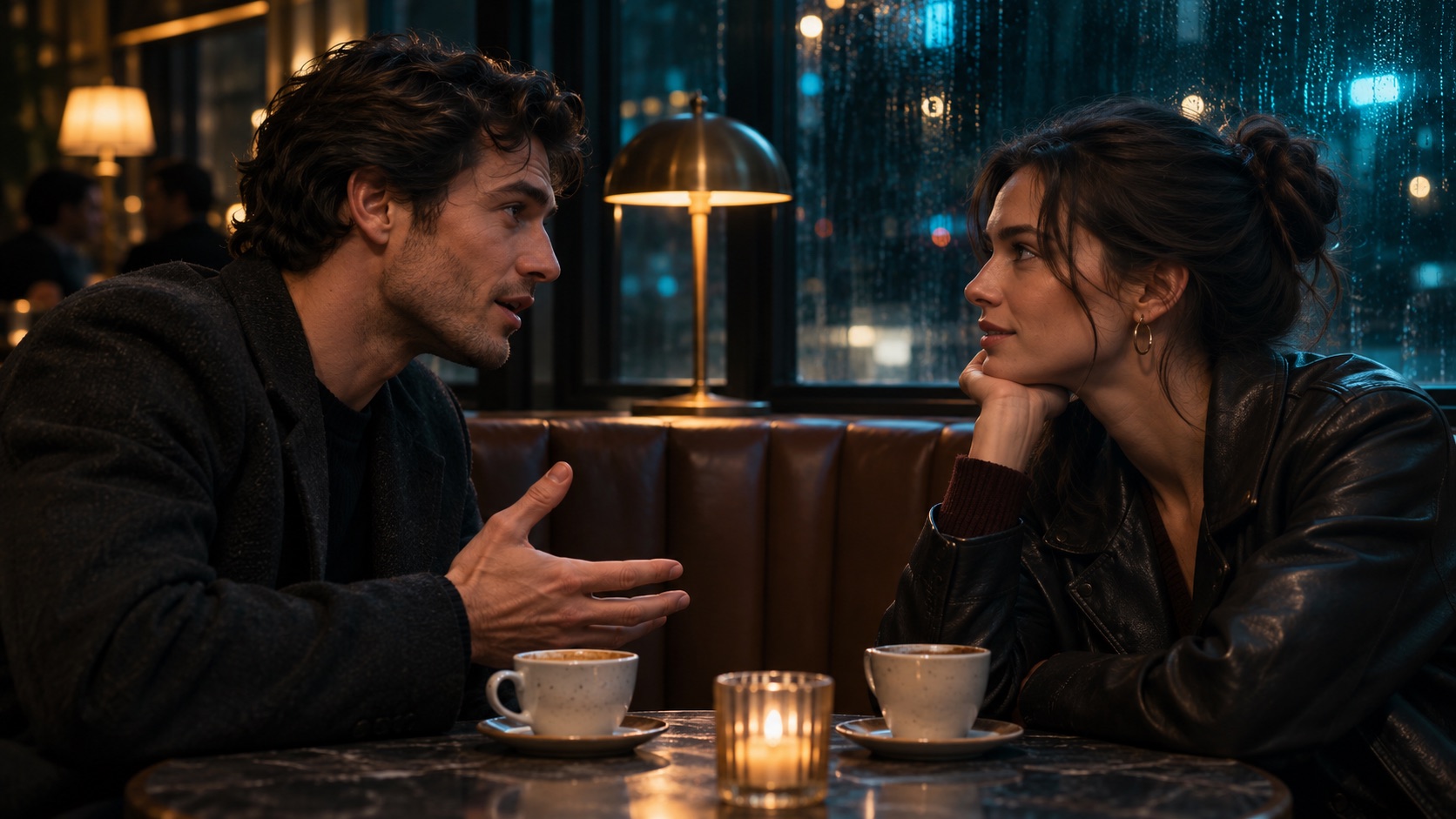

You have the scene, the characters, and two good lines. Then the generated video adds an unwanted gesture or leaves a pause that makes a quick exchange feel painfully slow. Choosing between Wan 2.6 and Kling 3.0 comes down to the performance you want. A quiet product explanation needs a different direction from a lively comedy sketch. Your best option is the one that gives you the words, the right speaker, and the timing your scene needs.
Wan 2.6 vs Kling 3.0 for Short Dialogue
For short dialogue, choose the model that gives you the performance you need with the least editing. A quiet product explanation benefits from restrained movement; a comedy sketch may welcome bigger reactions. Compare both models with the same image and script, then choose the take that fits your scene.
If your dialogue must follow an exact script, choose by the finished line. A natural voice works only when it says what you intended and fits the right character. For a fast social video, pay equal attention to the reply: an awkward wait can drain the energy from an otherwise convincing performance.
The Short-Dialogue Trade-Offs That Matter
Both models support generated speech in their audio-enabled workflows. Wan 2.6 lets you describe dialogue, tone, pace, and other sound details in the prompt. Kling 3.0 supports assigning dialogue to specific characters.
Choose the controls that serve your scene:
| Your Scene | What Matters Most | Keep the Brief Focused On |
|---|---|---|
| A short product hook | Exact wording | One speaker and one clear sentence |
| A two-person sketch | Clear speaking turns | Named characters and assigned lines |
| A casual conversation | Reactions and pacing | A short pause and a silent listener |
| Dialogue with an action | Speech-action coordination | One simple gesture at a defined moment |
Keep camera changes and elaborate action for later, once the dialogue works.
What Our Eight-Clip Café Test Showed
We compared eight 10-second videos generated in AKOOL with Wan 2.6 and Kling V3.0 Pro across four café scenes, with one output from each model per scene. Both models used matching starting images within each scene, with native audio enabled.
Test date: November 2026
Models: Wan 2.6 and Kling V3.0 Pro
Scenes: 4
Outputs: 1 per model per scene, 8 clips total
Duration: 10 seconds
Input: Matching starting images
Audio: Native audio enabled
Mara’s line was “Did you bring the keys?” Theo’s answer was “Yes, they’re in my bag.” The single-speaker scene used only the question.
| Scene | Wan | Kling Pro |
|---|---|---|
| One speaker | Target line matched; hands stayed on the table | Target line matched; added a hand gesture |
| Two speakers | Both lines matched; roughly four-second reply gap | Both lines matched; roughly 5.5-second gap |
| Dialogue plus cup placement | Cup reached the table around 5.5 seconds, during the reply | Cup reached the table around 9.2 seconds, near the reply’s end |
| Dialogue plus ambiance | Both lines matched; roughly four-second gap | Both lines matched; roughly 6.5-second gap |
Because each scene was generated once per model, these results describe this pilot rather than a universal performance ranking.
Wan kept the staging quieter. Both showed mouth movement ahead of speech, particularly in Kling’s replies; neither visibly swapped speakers.
Prompts were identical across models. Kling used no end frame, extra references, or Multi-Shot. The quiet and ambient exchanges shared a first frame; the action scene used a held-cup pose. All exports were 1080 pixels high: Wan at 30 fps, Kling at 24 fps.
We reviewed the spoken audio directly for wording and used two automated transcriptions as a secondary cross-check. Frame review and audio traces were used only to estimate timing.
Does the Spoken Line Match the Script?
Treat the words as the first check, especially when your video includes a promise, deadline, or product detail. Even a small substitution can change the message.
Give One Line One Clear Job
For a short promotional clip, “The sale ends Sunday” is easier to direct than a sentence combining the offer, deadline, delivery terms, and a call to action. Keep essential information in a short line and let on-screen captions carry supporting details.
Put the spoken words in quotation marks. Keep performance instructions outside them so the intended line is easy to identify.
Leave Enough Time to Finish
Read your script aloud at the pace you want. Allow room for a breath, a reaction, and the final word. If the sentence feels rushed in your own voice, shorten it before asking the model to perform it.
Listen to the exported video all the way through. Check captions against the audio, since automatic captions can introduce their own mistakes.
Two Faces, Two Voices: Who Says What?
When two people share the frame, make it immediately clear who speaks first and what the other person does while listening.
Give Each Character a Distinct Identity
“The person on the left” can become ambiguous if the composition changes. A name plus a visible detail gives you a clearer reference:
Nina, wearing a red jacket on the left, asks, “How was the trip?” Ben, wearing a blue shirt on the right, replies, “Worth every mile.”
Use those names consistently. For either model, attach every line to a named character.
Describe the Listener Too
Add a simple instruction such as “Ben listens with his mouth closed while Nina speaks.” A nod or smile may suit a relaxed scene; a formal presentation may need stillness.
Make the Conversation Feel Natural
A conversation needs a rhythm. Correct words and recognizable speakers can still feel disconnected if the mouth moves early or the reply arrives late.
Watch the Beginning and End of Each Line
Play the video at normal speed. Look for lips moving before the voice begins, speech continuing after the mouth closes, or talking movements after the sentence finishes. Slow playback can help you find a problem, but your audience will notice it at normal speed.
Give the Reply a Reasonable Beat
A quick joke like “Did you eat the last cookie?” followed by “I saved you the plate” needs a different pause than a serious confession. Describe the intended beat: “a quick, slightly guilty reply” or “a thoughtful pause before answering.”
You can trim an empty pause in an editor. If the speaker’s mouth is already moving through it, a simple cut may not solve the problem.
What Changes When the Scene Gets Busier?
Actions and background sound help a conversation feel situated. Keep them simple enough that the spoken exchange remains the focus.
Connect One Gesture to One Moment
If a bookseller should slide a book across the counter while saying “This is the one,” specify that relationship. Avoid adding a turn, a reach, a camera move, and a second speaker’s interruption to the same short moment.
For image-driven generation, make sure the starting image shows the hands and props needed for the action.
Keep Background Sound Behind the Voices
For a station conversation, request a low train rumble without intelligible announcements. Competing speech can make the dialogue harder to follow.
Add atmosphere once the exchange works, so you can adjust sound without reworking the script.
Choose the Model That Meets Your Dialogue Requirements
Choose the model that gets your scene closer to finished, with the fewest changes to essential dialogue and behavior.
For a quiet conversation, look for a take that keeps movement restrained and gives each character a natural speaking turn. For a livelier scene, choose gestures and reactions that support the dialogue. Keep the starting image and script unchanged when comparing Wan 2.6 and Kling, so you can judge which performance fits your scene.
Then consider the work left in the edit. Trimming an opening or adding subtitles is a small task. Replacing a wrong line, fixing the speaker, and rebuilding mouth timing can make another generation more appealing. Compare the credits spent on clips you would actually use, alongside the editing effort each needs.
When an approved recording or precise delivery is essential, consider an audio-driven workflow. Kling’s dedicated lip-sync tool accepts uploaded audio; confirm which options your chosen platform exposes.
Give Your Next Conversation a Clear Brief
Choose one scene, give each character a short line, and describe the pause between them. When comparing models in AKOOL’s video generation tool, use the same starting image and keep the dialogue unchanged. Listen once for the words, then watch for the speaker, mouth timing, and reactions. Once the conversation feels right, add the gesture or atmosphere that makes it yours. You will have a clearer creative direction and a much better sense of which output deserves your next edit.