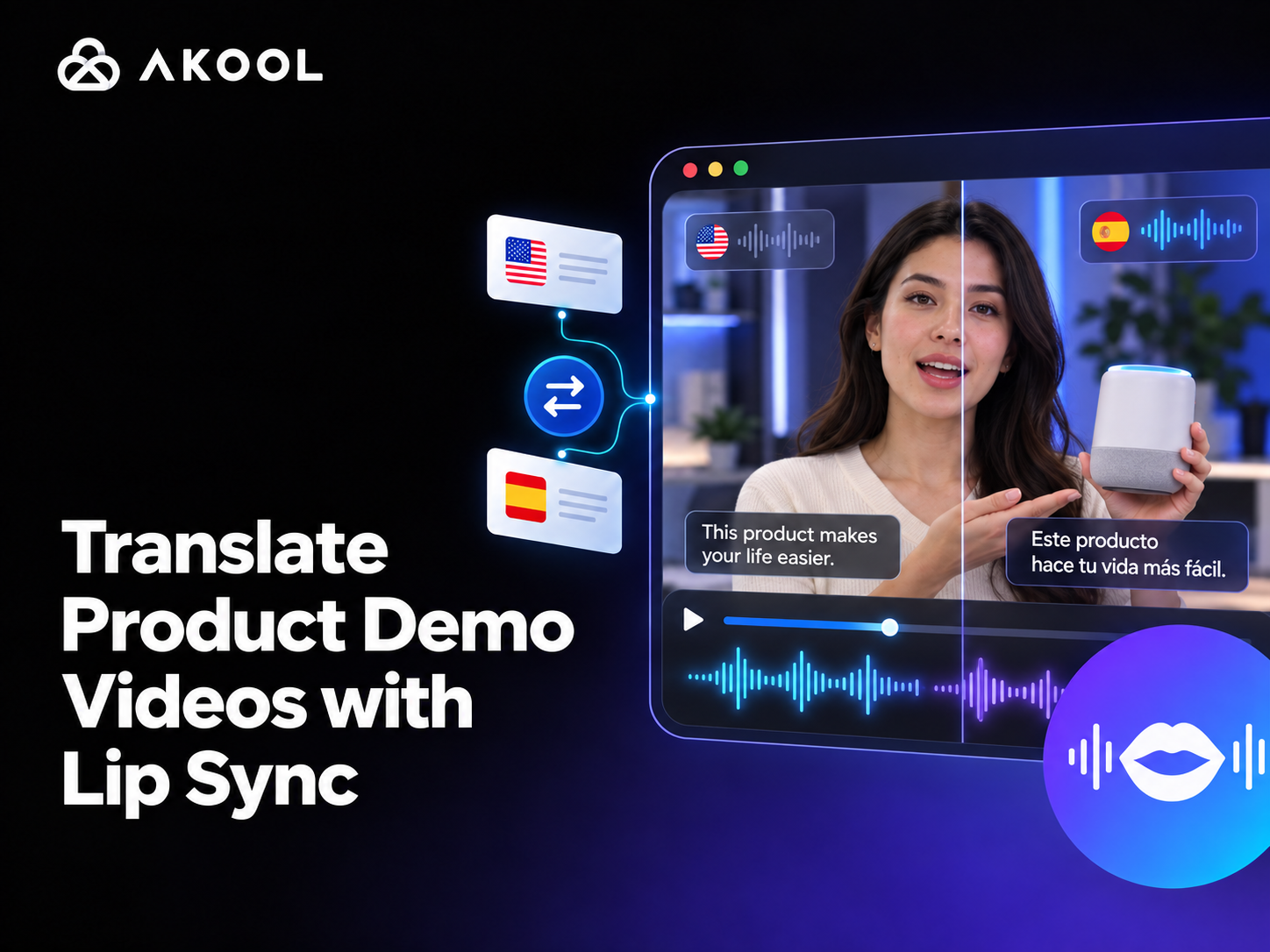
Product demonstration videos rely on a believable connection between the presenter, the product, and the message. Accurate translation matters, but visible speech should also align naturally with the presenter’s mouth movements.
AKOOL Video Translation localizes presenter-led demos from the Dashboard. It can translate narration, apply lip sync, add captions, protect terminology, and support proofreading without code.
A successful localized demo should preserve the product story, the presenter’s delivery, and the viewer’s ability to follow each on-screen action.
Quick answer: Upload the product demo, select the source and target languages, choose or clone a suitable voice, enable Lip Sync, protect product terminology, proofread the translation, and review the finished narration and mouth timing against every important on-screen action.
Quick Start
1. Upload the Product Demo
Sign in to AKOOL, open Video Translation, and upload the approved source video. Use clear speech, low background noise, good lighting, and an unobstructed presenter. Follow the requirements shown in the current upload panel because formats and limits can change. For longer demonstrations, split the source into logical sections such as the introduction, feature walkthrough, and call to action.
2. Choose the Source and Target Languages
Leave Source Language on Auto Detect when the original speech is clear, or select the language manually. Then choose the target language. For the first test, generate one localized version and validate the terminology, voice, and timing before scaling to additional markets.
3. Choose the Voice
Choose a voice that fits the presenter and the target market. When preserving the presenter’s identity matters, use Voice Clone or upload an approved voice sample. Test pronunciation, tone, pacing, and brand fit before generating every language version. Listen closely to product names, acronyms, and technical terms; if any are inconsistent, correct them later with the available terminology controls or Voice Dictionary.
4. Set the Speaker Count
Choose the number of people who speak in the video. Auto Detect is useful when the structure is uncertain; for a standard demo with one presenter, selecting one speaker makes the intended setup explicit.
5. Enable Lip Sync
Turn on Lip Sync when the presenter is visible while speaking. Clear, front-facing shots with an unobstructed mouth generally work better than profile shots, rapid cuts, or covered faces. See AKOOL’s guide to automatic lip sync for video localization for additional background.
6. Decide How Much the Timing Can Change
Dynamic Video Length lets the output duration adapt when a translation takes more or less time to speak. Use it when natural delivery matters most. For fixed screen actions or strict media slots, work with shorter source segments and review every transition.
Use Advanced Settings to Protect the Details
Subtitles and proofreading. Upload an approved SRT or ASS file when available, choose the caption mode, and review translation and timing before rendering.
Voice Dictionary and terminology. Protect product names, model numbers, acronyms, interface labels, and preferred pronunciations, especially across multiple languages.
Background music. Remove music when it interferes with speech separation; otherwise keep the original mix and confirm that narration remains clear.
Source specifications. Preserve the original specifications when appropriate, then verify aspect ratio, resolution, frame rate, and playback quality.
Localize More Than the Spoken Audio
A complete product-demo localization covers every element that helps the viewer understand or act. Use Video Translation for the narration, then translate and proofread the captions so their meaning and timing match the spoken track. Protect product names, model numbers, and preferred pronunciations with the Voice Dictionary or other terminology controls.
Text embedded in the video—such as interface labels, feature callouts, or instructions—may require replacement during post-production because it is part of the image rather than the audio. Adapt units, currency, dates, links, offers, and the final call to action for the target market instead of translating them literally. Legal statements, warranties, regulated terminology, and product claims should always receive human review before publication. This broader review keeps the localized video accurate beyond the presenter’s voice and lip movement.
Proofread Before the Final Render
Use the proofreading workflow when it is available, especially for technical or product-led content. Review trademarks, product names, SKUs, model numbers, feature labels, numbers, units, claims, and the final call to action. This step is more reliable than judging translation quality only after the complete video has rendered.
Generate and Review the Video
Submit the translation, then review the result with sound and captions. Check narration, mouth movement, subtitle placement, and timing against key product actions.
Product Demo Localization Test
Use one short presenter-led demo for a controlled comparison. Keep the edit, captions, and product actions consistent across all versions so translation, voice, lip sync, and timing are easy to assess.
Original: English
Localized version: Spanish/Japanese + Lip Sync
Spanish + Lip Sync. Spanish delivered the more natural lip-sync result of the two localized versions, particularly in the presenter’s longer explanatory lines. Pronunciation was clear, with no noticeable issues in the product name or key feature terms. The translated narration preserved the original product message and demonstration sequence; its slightly longer phrasing did not create a noticeable mismatch with the on-screen product actions.
Japanese + Lip Sync. Japanese also kept the presenter’s mouth movement and delivery aligned well with the localized narration, though the rhythm is slightly more deliberate than in Spanish. No obvious pronunciation issues were observed, and the product information, feature explanations, and CTA remained consistent with the English source. The Japanese phrasing is more compact in several sections, but the timing still follows the product revealing and handling steps naturally.
Quality Checklist
☐ The source speech is clear and the presenter’s mouth is visible.
☐ The source language, target language, and speaker count are correct.
☐ Lip Sync is enabled for visible speaking scenes.
☐ Product names, UI labels, numbers, units, and claims are accurate.
☐ Voice pronunciation, tone, and pacing fit the presenter and target market.
☐ On-screen text, units, currency, and the CTA are localized for the target market.
☐ Captions are readable and do not cover important product details.
☐ The translated narration still matches the screen actions.
☐ The final CTA is correct for the target market.
Where This Works Best
Product launches. Localize presenter videos for regional campaigns.
SaaS walkthroughs. Keep translated speech aligned with the interface.
Hardware onboarding. Adapt setup and training demos for regional teams.
Sales enablement. Give regional teams approved product demos.
Final Takeaway
A convincing localized demo starts with clear source footage, the correct language and voice, Lip Sync, protected terminology, and a complete review against the original product actions.
Ready to localize a product demo? Open AKOOL Video Translation and test one short segment in your first target language.
Frequently Asked Questions
Does AI Video Translation Preserve the Original Speaker’s Voice?
Voice Clone or an approved uploaded voice can preserve a similar speaker identity. Results still depend on audio quality, pronunciation, language, and delivery. Review a short sample first when the presenter’s voice is part of the brand.
What Happens If the Translation Is Longer Than the Original?
Dynamic Video Length can adapt the output when translated speech runs longer or shorter. For narration tied to fixed product actions, use shorter source segments, simplify the approved translation where appropriate, and review every transition against the screen.
When Should I Enable Lip Sync for a Product Demo?
Enable Lip Sync when a visible presenter speaks to the audience, especially in close or medium shots. It matters less for screen recordings, voice-over sections, or scenes without a visible face. Clear, front-facing footage usually gives the strongest synchronization.
How Do I Keep Product Names and Technical Terms Accurate?
Start with an approved transcript and terminology list. Use the Voice Dictionary or available terminology controls for trademarks, SKUs, model numbers, acronyms, and pronunciation. Then have a product or regional reviewer confirm claims, units, interface labels, and the final CTA.
Resources