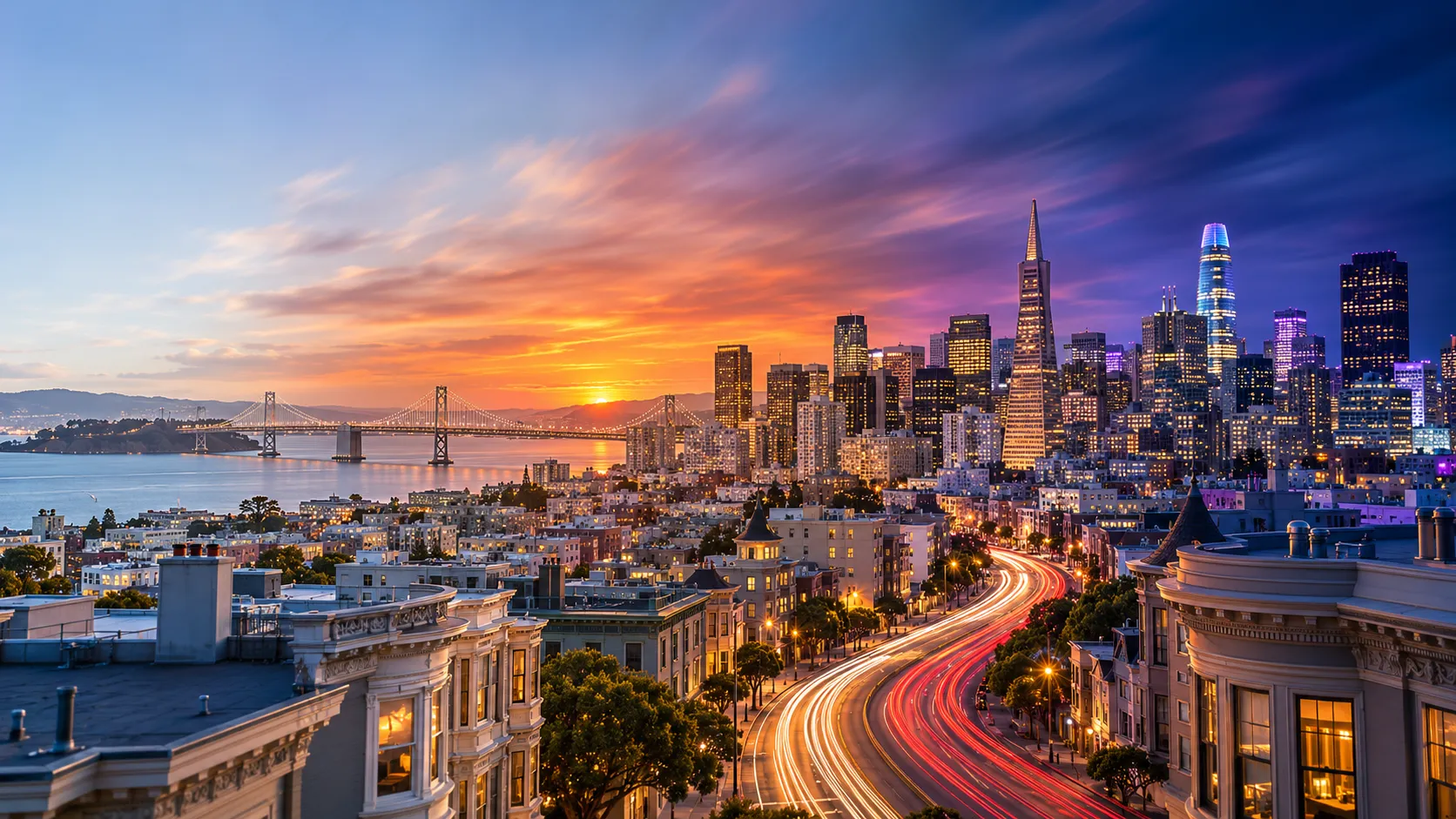

Clouds sweep over a hillside. Morning sunlight travels across a quiet room. Hours seem to pass in seconds, without a camera running all day. Text-to-video AI makes these scenes possible, but convincing time-lapse takes careful direction: the light and motion should change while the setting stays recognizable.
To create an AI time-lapse video, choose one visible change, describe its beginning and ending, and keep the camera and main structures fixed. Generate the scene with an available Veo or Kling model, then check the entire clip for uneven motion, flicker, or shifting shapes. Adjust one major instruction at a time before generating again.
What Makes an AI Video Look Like Time-Lapse?
An AI time-lapse simulates a process that normally unfolds over a longer period. You should recognize the same place as clouds move, daylight shifts, or shadows stretch.
| Effect | How It Works |
|---|---|
| AI-generated time-lapse | A model generates changes that suggest time passing |
| Speed-up footage | Recorded video plays faster |
| Hyperlapse | Time compression combines with substantial camera movement |
The important visual cue is continuity. A moving shadow suggests afternoon passing; a table changing shape distracts from it. Generated scenes suit creative storytelling. Use recorded footage when you need to document a real event or observation.
Choose One Change and Keep the Scene Simple
Give yourself a scene you can describe in one sentence. A single change is easier to direct and evaluate than several transformations happening together.
| Scene | What Changes | What Stays Fixed |
|---|---|---|
| Hillside under passing clouds | Clouds and their shadows | Hills, trees, horizon |
| Sunlit reading room | Light patches across the floor | Furniture, walls, windows |
| Courtyard through the afternoon | Shadow length and direction | Paving, benches, surrounding buildings |
Choose text-to-video AI for an imagined setting. If you already have a composition, try a supported image-input mode using a photo you own or have permission to use. Complex growth and construction sequences can wait until you are comfortable checking simpler scenes.
Write a Prompt That Separates Change From Stability
A useful prompt explains the passage of time and gives the scene something steady to hold onto. You can reuse this formula across different subjects:
Stable scene + starting state → visible time progression → ending state + fixed camera + elements that must not change.
Describe the Time Progression
Name visible changes. “Time passes in a room” is vague. “Morning sunlight moves across the floor as shadows lengthen toward afternoon” gives the model a process to depict.
Your finished clip might last several seconds while suggesting hours. That simulated span describes a creative effect, not an exact measurement of elapsed time.
Anchor the Camera and Scene Geometry
Pair those changes with fixed objects and a clear camera instruction. For example:
Locked-off wide shot of a quiet reading room in morning sunlight. Time-lapse progression into late afternoon. A patch of sunlight travels across the wooden floor as the light warms and shadows lengthen. The chair, bookshelf, window, walls, and floorboards remain unchanged. One continuous shot with no camera movement or cuts.
The window, furniture, and floorboards give you reference points to check afterward. Even with specific instructions, look closely at the result.
Generate the Scene With Veo or Kling on AKOOL
You can choose Veo or Kling in the AKOOL AI video generator and use the input options available for that version. Check the settings after selecting your model, since the available choices can differ.
- Choose your model. Note its full version name so you can return to the same setup.
- Select your input. Enter a text prompt for a new setting, or upload a permitted reference image when supported.
- Set the output. Choose your publishing format and an available duration and resolution. Landscape framing gives a wide environment room to breathe; vertical framing suits a narrower view.
- Enter the prompt. Keep the main change clear. Remove conflicting instructions such as a camera orbit in a shot that should remain fixed.
- Generate and save. Keep the original clip and its settings before revising anything.
Test Veo and Kling on the Same Time-Lapse Scene
For a practical comparison, we used the same city time-lapse prompt with Google Veo 3.1 and Kling V3.0 Pro. The clearest differences were how far the lighting progressed and how naturally the scene moved.
The Test Setup
Both clips were generated on November 10, 2026, using an eight-second setting and 1080p (1920 × 1080) landscape output. Each model was run once.
The shared prompt was:
Static wide shot of the same city skyline. Late afternoon gradually transitions into night over several simulated hours. Clouds move quickly across the sky, shadows lengthen, and building lights switch on progressively. The camera remains locked. Buildings, the horizon, the road layout, and the framing remain unchanged.
What the Results Showed
Veo carried the scene from warm sunset into a dark sky with a moon and stars. Building lights and traffic trails became prominent as daylight faded.
Kling showed moving clouds and windows lighting up, but its ending remained closer to dusk. The road surface and clouds also showed localized jitter, making their movement feel unsteady and less natural.
| Detail | Google Veo 3.1 | Kling V3.0 Pro |
|---|---|---|
| Lighting transition | Reaches a clearly darker nighttime scene | Ends with a relatively bright twilight sky |
| Main layout | Skyline and road network remain recognizable | Buildings and elevated road remain recognizable |
| Motion quality | Cloud movement and the lighting transition feel more continuous | Local road and cloud jitter disrupts the flow |
| Scene continuity | No obvious scene cut | No obvious scene cut, but local movement feels unstable |
The Veo clip was the better fit for this afternoon-to-night scene. Kling would need another attempt to smooth out the road and cloud motion and reach a darker ending. Its recognizable skyline alone was not enough to make the shot feel stable. We generated each clip once, so your own results may differ even if you use the same prompt.
Review the Whole Clip Before You Call It Finished
Watch your text-to-video AI clip all the way through before adding music or changing its speed.
Watch the Progression at Normal Speed
Can you follow the change without reading the prompt? Look for a clear direction and connected intermediate stages. A sudden jump between two lighting conditions can feel like an edit instead of continuous time passing.
Inspect the Structures Between Those Moments
Pause at several points and compare fixed edges, object positions, and surface patterns. Then replay the section: small wobbles can be easier to notice in motion. Speeding up a distorted clip does not repair its shapes.
Fix Flicker, Camera Drift, and Unwanted Transformations
Match your next edit to the problem you can actually see. Local shaking, random brightness changes, and camera movement call for different revisions.
| Problem | Revision to Try |
|---|---|
| Time passing is unclear | Describe a visible change, such as a shadow crossing the floor |
| Camera moves unexpectedly | Remove conflicting camera cues and request unchanged framing |
| Surfaces or clouds jitter | Simplify the motion and remove competing changes; regenerate |
| Objects change shape | Reduce scene complexity and name the structures that should stay fixed |
| Brightness flashes randomly | Describe gradual lighting changes with a clear intermediate stage |
| Scene suddenly switches | Request one continuous shot and simplify the transition |
Change one major variable, then compare the new output with the previous version. If repeated attempts still look unstable, try a simpler composition or another available model. Prompt changes can help, but no phrase guarantees a clean result.
Create a Time-Lapse Scene You Can Actually Use
Choose a small, visible change and give it a steady setting. Passing clouds, a moving patch of sunlight, or lengthening shadows can provide enough interest for a short clip. Use the prompt formula, generate in AKOOL, and review the whole sequence before polishing it. Keep the version with convincing motion and recognizable structures, then adjust its timing, sound, and framing for your audience. Your next useful shot begins with one clear idea and a careful look at the result.