Explore this direction
↗
PRODUCT CAMPAIGN
Product and campaign concepts
01
Create images from a text prompt or a reference photo. Explore image models, try a new visual style, and refine your ideas for product concepts, portraits, social posts and more.
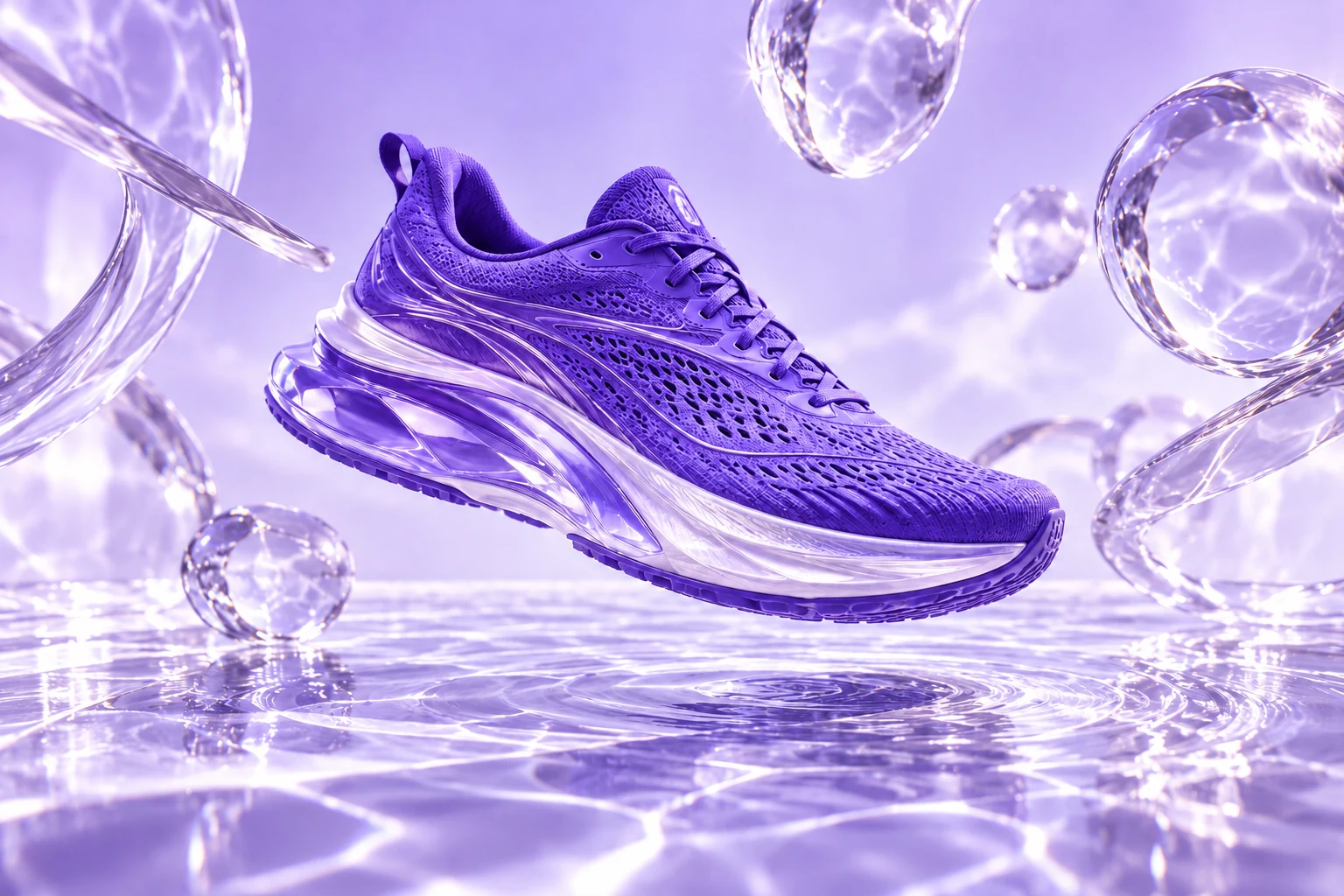
A violet sneaker. Liquid light.
A campaign beyond the studio.
Explore product scenes, portraits, illustrations and concept art. Use a suggested prompt as your starting brief, then adapt the image to your audience and format.
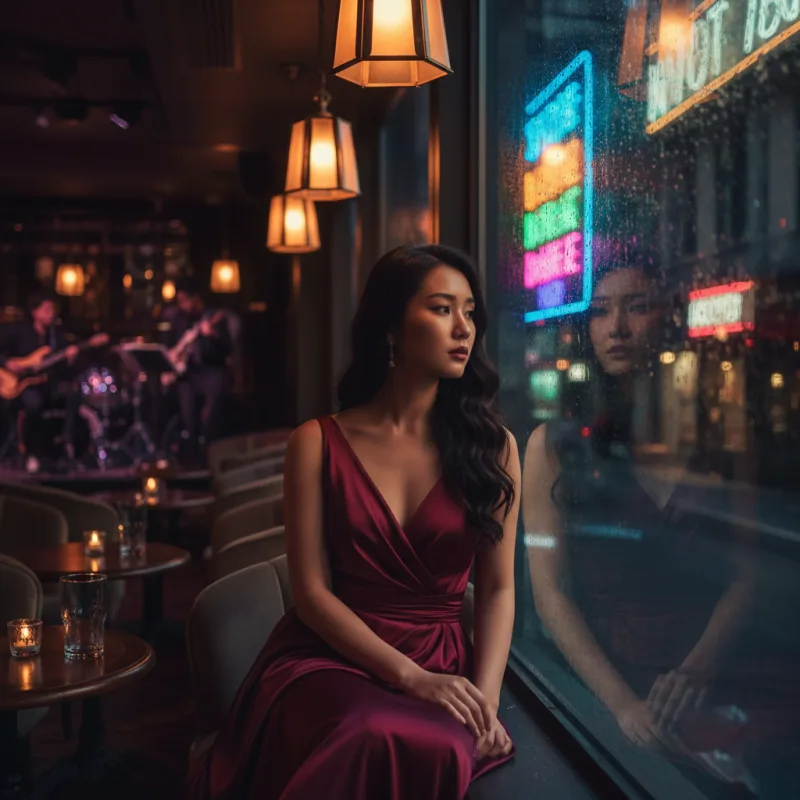
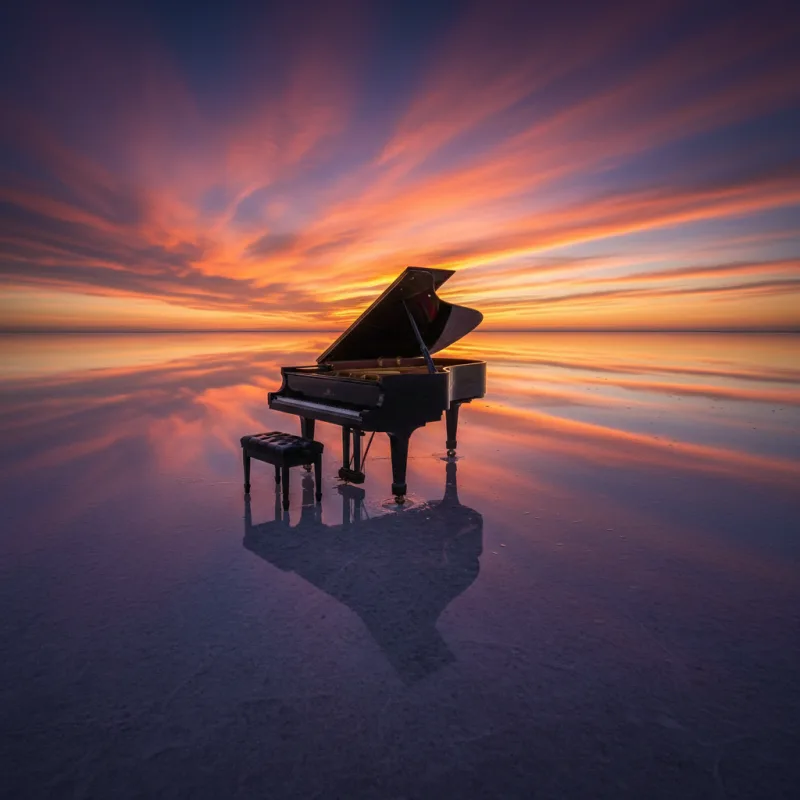
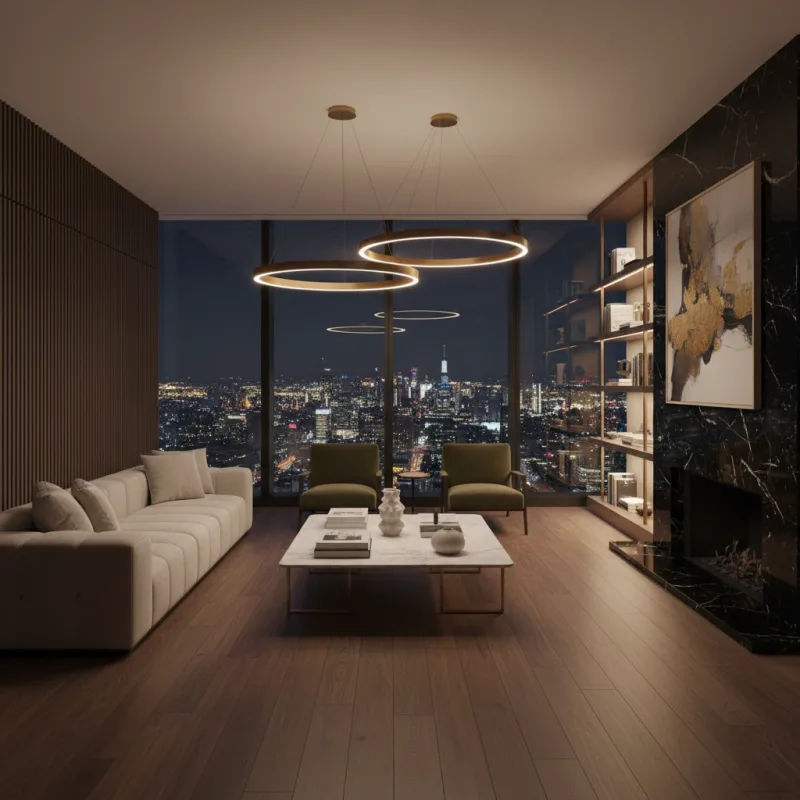
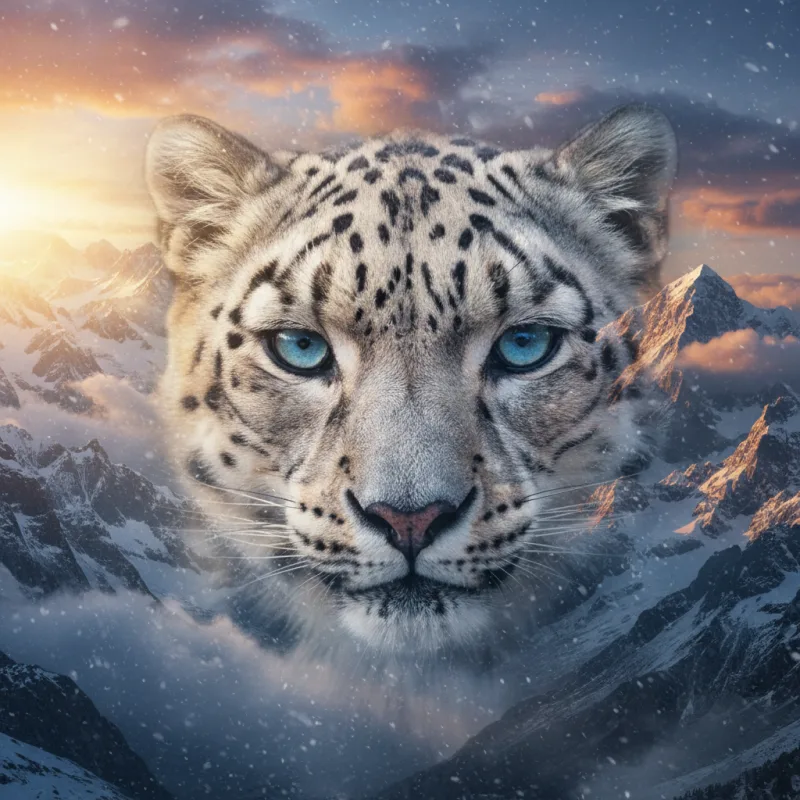
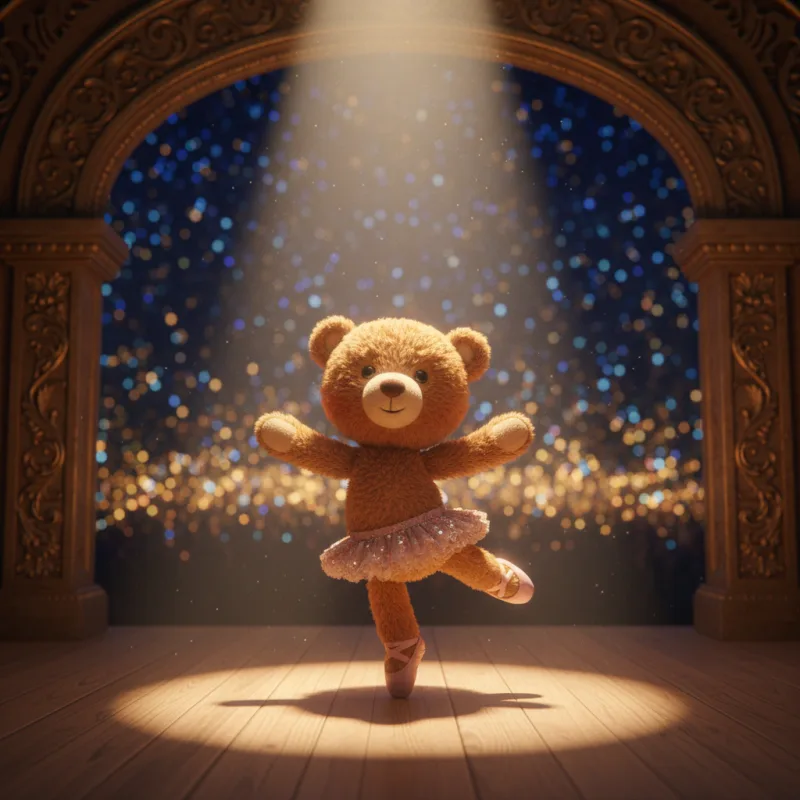
Choose a model for the task in front of you. Explore realistic characters with AKOOL Image, text-rich concepts with Nano Banana Pro, cinematic scenes with FLUX, or detailed briefs with GPT Image.
Explore portraits, illustrated characters and realistic scenes. Use a clear visual brief to develop a consistent direction across your image set, then check the face, styling and scene details in each result.
Explore AKOOL ImageModel versions, settings and credits vary. Check the image workspace and your plan for current access.
Choose a starting point, add your creative brief and generate. Keep the useful details in your prompt, then make focused changes to improve the result.
Name the subject, scene, style and lighting. Use a reference photo when its appearance should guide the result.
Open AKOOL to createStart from a reference, improve an image’s resolution or explore a different visual style. Choose the tools that suit the next step in your project.
Upload a reference and describe the changes you want to explore. Try a different setting, style or lighting, then compare the result with your original photo.
Explore image to image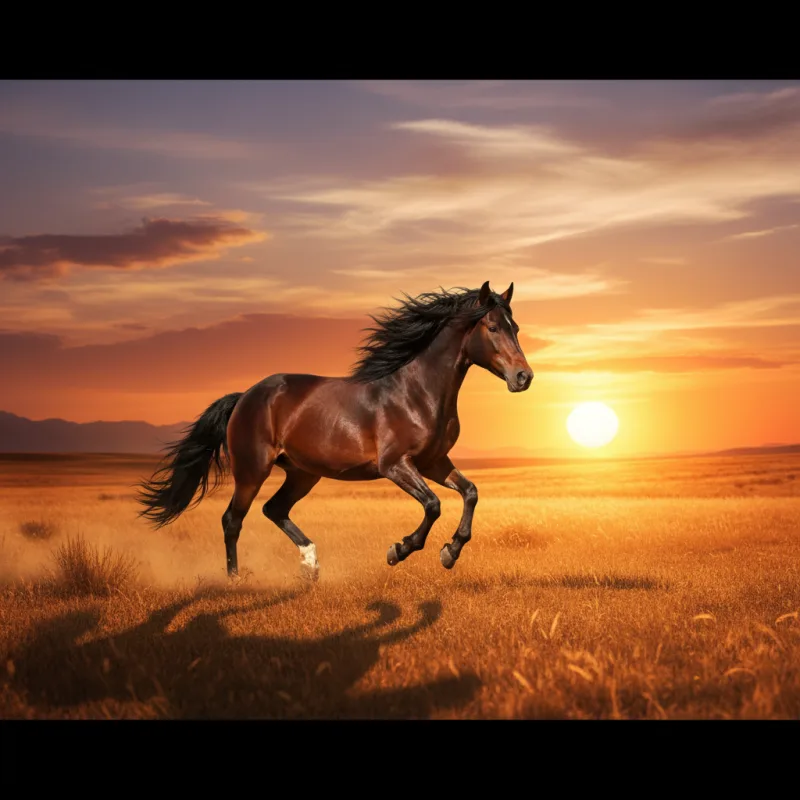
Improve an existing image with AKOOL’s upscaler. Review the available output options and compare the result at full size before preparing it for a page, post or presentation.
Explore image upscalingTurn a concept into a photographic scene, an illustration or an imagined world. Change one part of your brief at a time so you can see what improves the result.
Try a new directionStart an image-to-video project with a still you have created or uploaded. Add movement, an action or a camera direction, then choose the settings available for your selected video model.
Bring an image into videoExplore the AI video generatorA useful prompt names the subject, setting, lighting, style and composition. Try a brief below, then change one detail at a time instead of rewriting everything.
A ceramic coffee cup on a pale stone plinth, soft morning light, subtle shadow, minimalist studio, close-up product photography.
Copy promptAn editorial portrait by a rain-streaked window, soft reflected neon, natural skin texture, cinematic mood, shallow depth of field.
Copy promptA floating glass pavilion above a lavender sea, curved architecture, distant mountains, diffused daylight, surreal cinematic composition.
Copy promptPractical answers about prompts, photos, models, credits and the next step in your project.
Visit the help centerAn AI image generator creates an image from a written description or a reference photo. In AKOOL, you can choose an image model, describe the subject and visual style, and generate a result. Review the image, then refine your instructions to explore a different direction.
Open the image generator and choose Text to Image or Image to Image. Select an available model, add your prompt or reference, and review the settings before you generate. Afterward, compare the result with your brief and adjust the details that need another pass.
Yes. Use Image to Image to start with an uploaded reference photo. Describe the changes you want, such as a different setting, lighting or visual style. How closely the result follows your photo depends on the chosen model, prompt and settings.
AKOOL lists image models including AKOOL Image, Nano Banana Pro, Seedream, FLUX, GPT Image and Recraft. They offer different approaches to image creation. Check the live image workspace for the current versions and settings, and the pricing page for model access on your plan.
Name the subject, setting, lighting, style and composition. Add important details such as materials, colors, camera angle or space for a headline. A prompt like "a white ceramic mug on pale stone, soft window light, close-up product photo" gives a clearer direction than "a nice mug."
Yes. AKOOL supports prompt-based and reference-based image creation for product scenes and marketing concepts. Use a product photo when its appearance matters, and describe the setting you want. Check the shape, label, colors and other product details before using the result in a campaign.
AKOOL Image is designed for coherent characters and visual sequences. Use a consistent character brief and supported reference options, then compare each image for changes in the face, clothing and styling. A consistent direction is a creative goal, so review every image in the set.
AKOOL lists models that support text-rich image creation, including Nano Banana Pro and GPT Image. Include the exact wording and describe where it should appear. Check spelling, spacing and readability in the result, especially for product labels, posters and small text.
AKOOL provides image generation and a separate image upscaler. Use the upscaler to improve an existing image, or review the resolution options for your selected image model. Available output settings vary. Check the final dimensions and image quality before preparing an asset for print or a large display.
AKOOL offers free and paid plans and uses credits for generation. The models you can access, included credits and export limits depend on the plan and selected options. Check the current pricing page and review the credit cost shown in the workspace before you generate.
Choose a plan with the licence your project requires. AKOOL’s pricing page distinguishes personal, business and enterprise licences, so a paid subscription alone does not mean every commercial use is included. Review the current plan terms and use reference photos, logos and other materials you have permission to use.
Yes. Open AKOOL’s image-to-video tool and use your image as the starting frame. Add a prompt describing the subject’s movement and the camera direction, then choose an available video model and settings. Review the generated clip to see how the motion follows your brief.
Write a prompt or start with a photo. Create your next visual in AKOOL.
Create with AKOOLテキストからAI動画を生成し、画像に動きを加え、対応する参照素材でシーンを指定できます。AKOOLでVeo、Kling、Seedance、Wanを比較し、企画に合うモデルと設定を選びましょう。
プロンプトをコピーし、AKOOLを開いて生成します。利用できるモデル、設定、必要クレジットは異なります。
動画の作例を見る音声なしの作例:劇場の舞台に、蒸気機関車、金色の光、漂う煙。
Published AKOOL examples.AKOOLが公開した商品シーン、映画的な世界、ビジュアルの変化をご覧ください。クリップを開いて動きを観察し、自分の企画の出発点を見つけましょう。
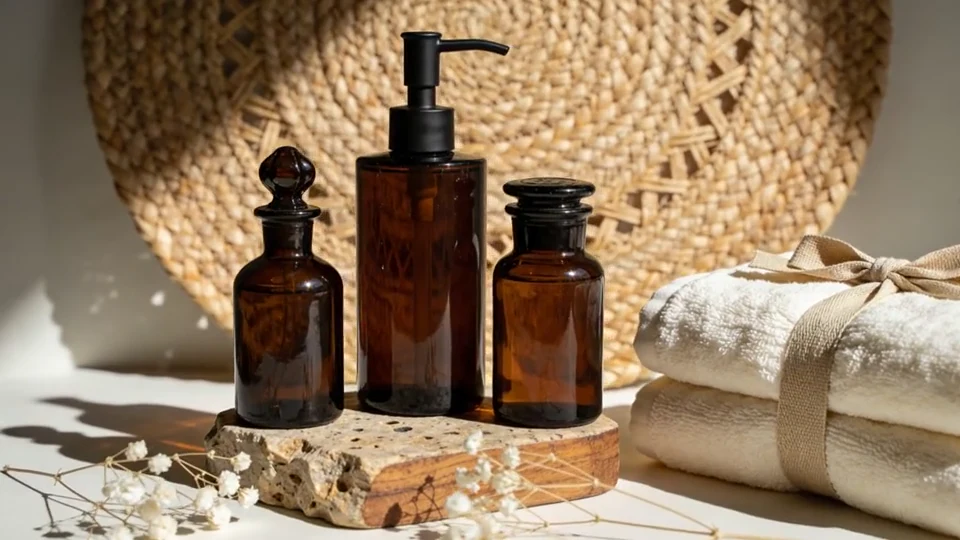 0:10音声なしのプレビュー
光と穏やかな動きで商品の見せ方を探ります。完成したクリップを、承認済みのパッケージや色と比較してください。
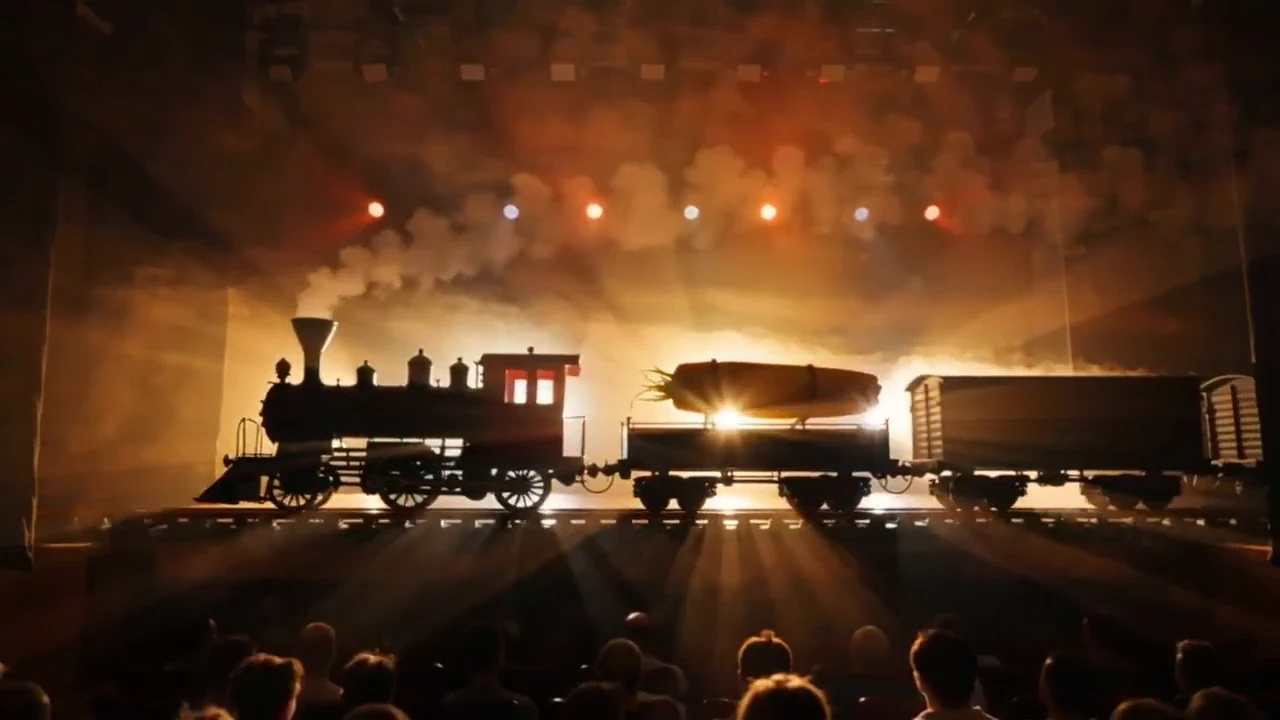 0:20音声なしのプレビュー
シーンの被写体、動作、カメラの方向を指定します。次のショットを計画する前に、ビジュアルのコンセプトを固めましょう。
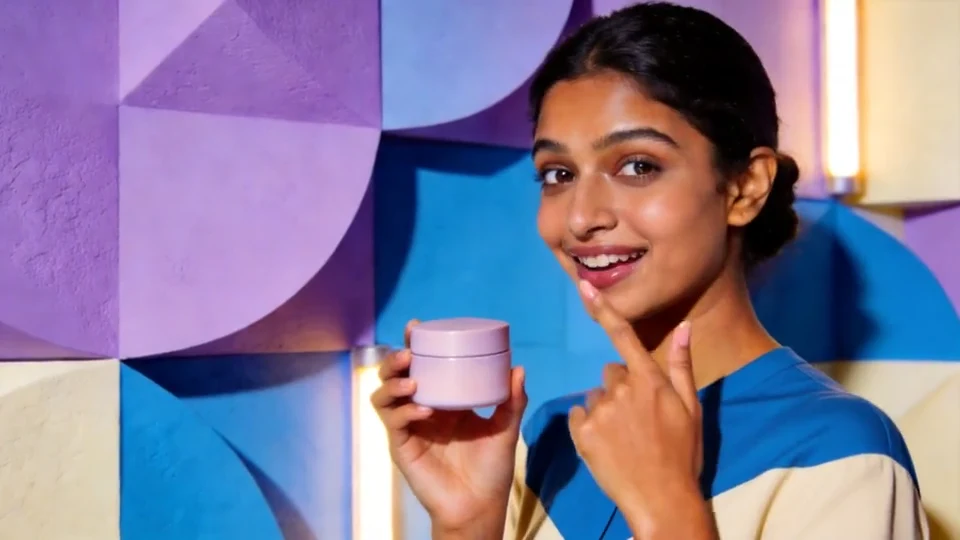 0:10音声なしのプレビュー
人物を中心とした短い商品シーンを試します。使用する前に顔、手、パッケージを確認してください。
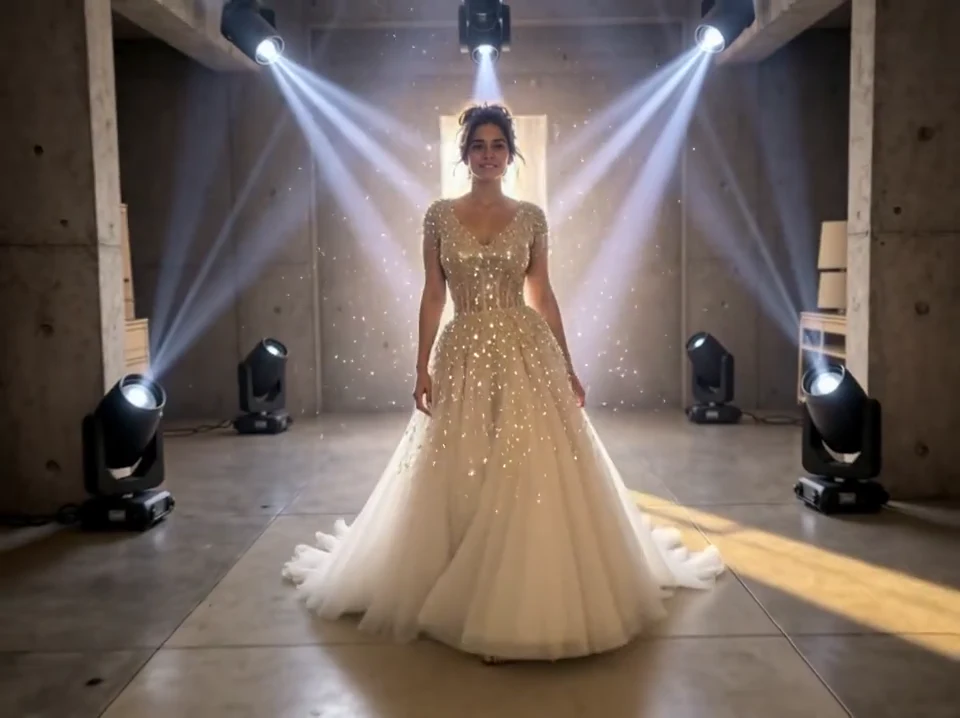 0:10音声なしのプレビュー
背景、衣装、雰囲気を変えてみましょう。意図する被写体とビジュアルの方向性を指示で明確にします。
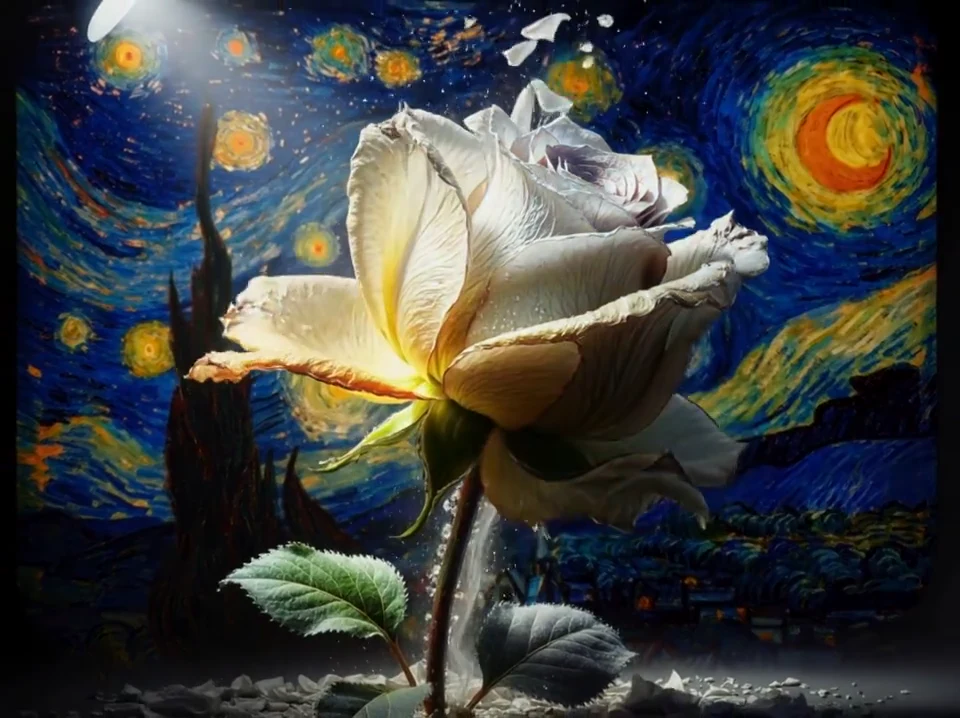 0:10音声なしのプレビュー
イラストから始め、時間とともにどう変化するかを説明します。動きと元の画像の見た目を確認してください。
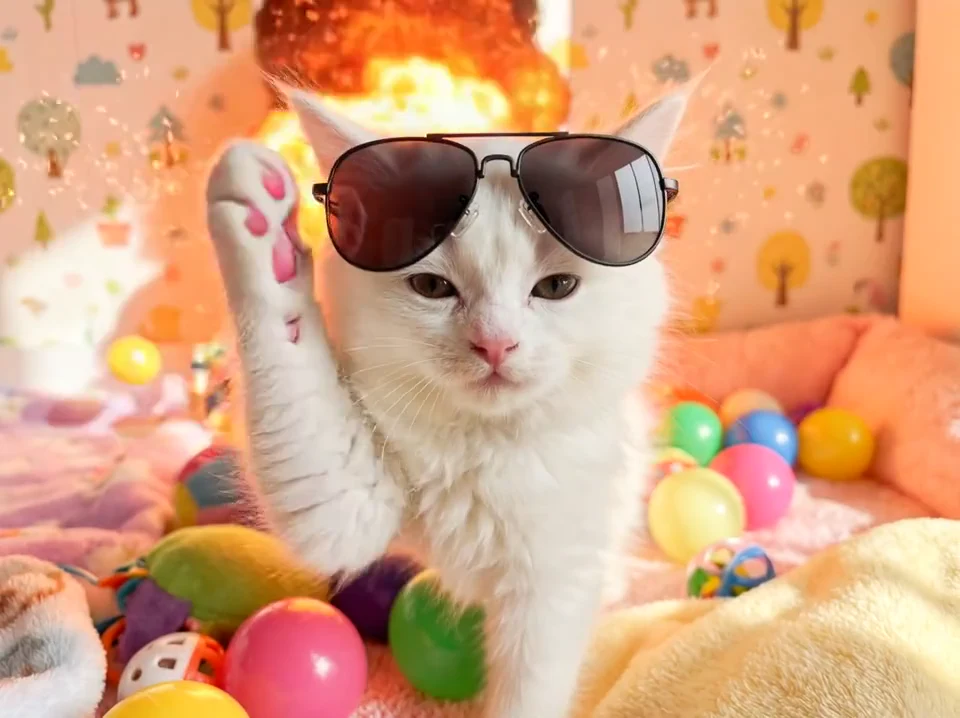 0:10音声なしのプレビュー
シンプルな動作で、遊び心のある見せ方を試します。視聴者が主役と展開を理解しやすいシーンにしましょう。
これらはAKOOLが公開した作例です。提案するプロンプトは似た方向性を試すための新しい例であり、各クリップで使われた設定の記録ではありません。
画像から動画への生成では、写真、イラスト、レンダリングに動きを加えます。鮮明な画像をアップロードし、具体的な動作を説明して、選んだモデルの設定を指定します。
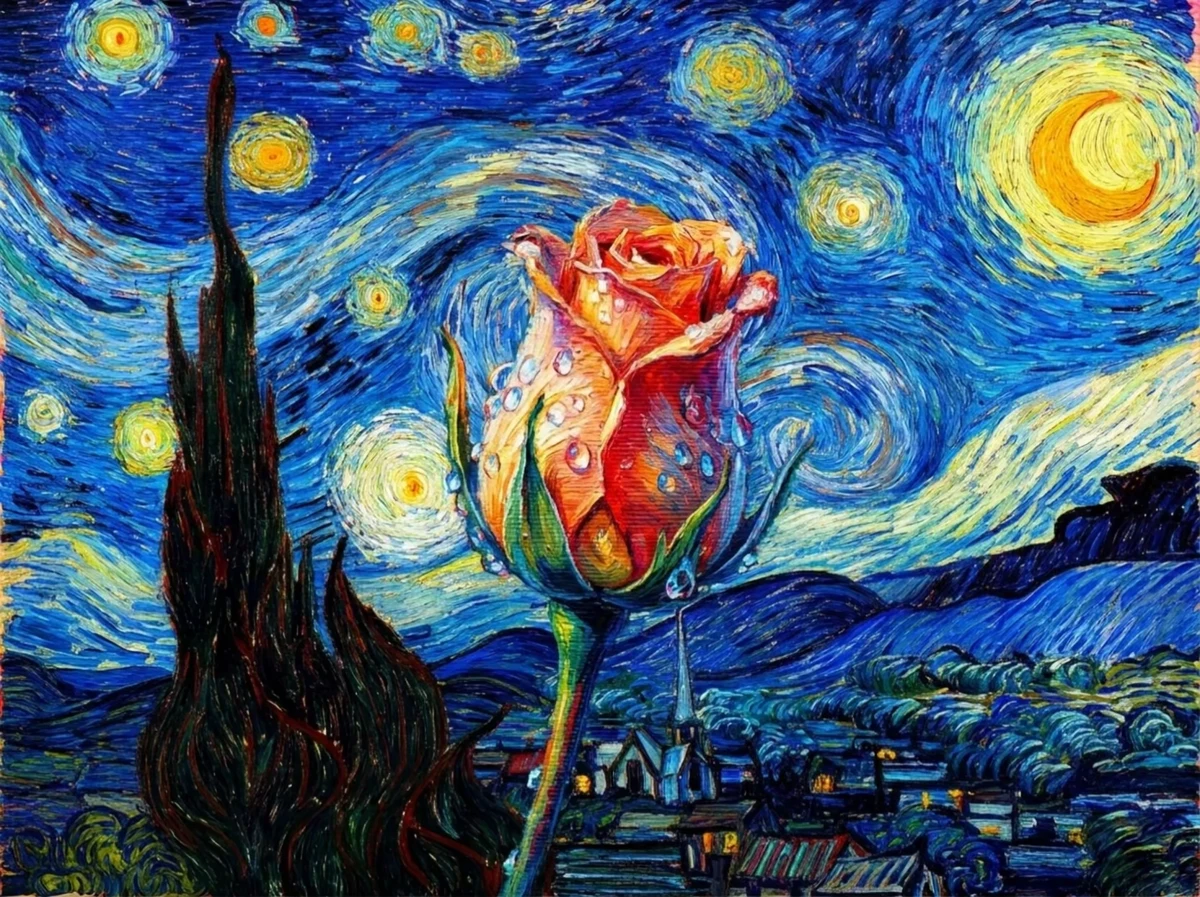 変化を見る
「描かれた花がゆっくりと本物のようになる。穏やかなカメラの寄りと柔らかな自然光を使い、周囲の絵の構図は残す。」
An original example prompt. Results will depend on the uploaded image and model.新しいシーンにはテキストから動画、静止画が出発点なら画像から動画を選びます。複数の素材を使って指定する場合は、参照素材に対応するモデルを選んでください。
シーンを言葉で説明します。被写体と動作から始め、背景、照明、カメラの動きを加えてショットを明確にしましょう。
写真、イラスト、レンダリングをアップロードし、動きを説明します。被写体を明確にし、最初の動作を簡単にすると変化を評価しやすくなります。
対応する画像、動画、音声の参照素材で新しいクリップを指定します。被写体、スタイル、動きなど、各素材の役割を決めてください。利用できる入力はモデルによって異なります。
各モデルが受け付ける入力と、アイデアの表現方法を比較します。手元の素材を基に、必要な動き、音声、出力設定を確認してください。
承認済みの商品画像はありますか?同じ画像と簡単な動きのプロンプトで、参照素材対応のVeoとSeedanceを比較しましょう。各結果のパッケージと色を確認してください。
GoogleのVeoシリーズで参照素材を使ったシーンを試します。生成前に、選んだバージョンの画像、動き、音声の設定を確認してください。
SCENES · REFERENCES · MOTIONVeoを見るカメラワークを生かすシーンや複数ショットのアイデアを試します。Klingの参照素材と音声の機能はバージョンで異なるため、AKOOLで使える設定を比較してください。
CAMERA · SUBJECTS · SEQUENCESKlingを見る参照素材を使った動画作成を試します。Seedance 2.0は複数の参照形式に対応しています。利用可能な設定はバージョンとワークフローで異なります。
REFERENCES · VISUAL DIRECTIONSeedanceを見るWanシリーズで画像を基にした動きや短いシーンを試します。アカウントに表示されるバージョン、対応入力、音声設定を確認してください。
IMAGE MOTION · SCENE IDEASWanを見るAKOOLを開き、対応するワークフローを選び、プロンプトや参照素材を追加して設定します。クリップを生成して確認し、必要な部分を調整しましょう。
動画ワークスペースを開くひとつの主な動作を説明し、被写体、背景、カメラの方向を加えます。人物や商品の見た目が重要なら、鮮明な画像や対応する参照素材をアップロードしてください。
利用できる入力形式、長さ、縦横比、解像度、音声設定を確認します。生成前に表示される必要クレジットをチェックしてください。
動き、顔、手、商品の細部を最初から最後まで確認します。指示はひとつずつ変更しましょう。使える結果をダウンロードするか、次の工程に必要なAKOOLツールへ進みます。
生成はプロジェクトの一部です。ビジュアル、ナレーション、翻訳、プレゼンター動画に使えるAKOOLの関連ツールを探索しましょう。
役立つプロンプトは、誰や何が登場し、何が起こり、どう見せるかを説明します。これらの例を出発点に、自分の素材に合わせて調整してください。
承認済みのスキンケアボトル画像を使う。柔らかな日差しがガラスを移動する中、カメラがゆっくり近づく。ボトルを中央に置き、ラベルをカメラへ向ける。ひとつの連続ショット。
このプロンプトをコピー雨上がりの静かな街路。路面の反射、柔らかな夕方の光、穏やかな横移動のカメラ。落ち着いた雰囲気のひとつの連続ショット。文字は入れない。
このプロンプトをコピーまとめて生成する前に、モデルの利用条件と必要クレジットを確認してください。クライアント案件、広告、その他の業務利用では、アカウントのライセンスが用途をカバーすることを確認しましょう。
現在のプランを比較AI動画生成ツールは、テキスト、画像、その他の対応する参照素材から動く映像を作成します。AKOOLではワークフローとモデルを選び、指示を加えてクリップを生成・確認します。入力、操作、出力の選択肢は選んだ設定によって異なります。
AKOOLのテキストから動画を開き、被写体、動作、背景、カメラワークを説明します。利用可能なモデルと設定を選び、必要クレジットを確認して生成してください。クリップを見直し、次の版をつくる前にプロンプトを調整します。
はい。AKOOLの画像から動画では、静止画に動きを加えられます。鮮明な写真、アート作品、レンダリングをアップロードし、動かしたい部分を説明してください。商品では、形、色、包装、ラベルを中心に、結果全体を承認済み画像と比較します。
画像から動画は、動かしたい1枚の静止画を出発点にします。参照素材から動画は、対応する素材でキャラクター、商品、スタイル、動きなどを指定して新しいクリップを生成します。参照形式やアップロード上限はモデルによって異なります。
手元の入力に対応し、必要な操作ができるモデルを選びましょう。AKOOLにはVeo、Kling、Seedance、Wanなどのシリーズがあります。同じ指示で利用可能な2つのモデルを比べ、使える結果、必要クレジット、修正量を評価してください。
一部のモデルバージョンは動画と同時に音声を生成します。後からナレーションを加える方法とは異なります。選んだモデルの音声設定を確認してください。AKOOLには、台本やボイスオーバーなどに使う独立した音声ツールもあります。
クリップの長さはモデル、ワークフロー、利用可能な設定で異なります。撮影計画の前にAKOOLに表示される長さを確認してください。生成された1本のクリップと、複数を組み合わせた完成動画は別です。長いストーリーは必要に応じて複数のシーンに分けましょう。
AKOOLには複数の縦横比や解像度の選択肢があります。利用可否はモデルとプランによって異なります。その解像度で直接生成するのか、生成後にアップスケールするのかを確認し、公開先に合う形式を選んでください。
AKOOLは無料アクセスと有料プランを提供しています。利用可能なモデル、クレジット、透かしの条件はアカウントによって異なります。動画を生成・ダウンロードする前に、最新の料金ページとワークスペースの選択肢を確認してください。
すべての動画で同じクレジット数になるわけではありません。モデル、長さ、画質、その他の設定で費用は変わります。生成前に表示される数値を確認してください。複数本をつくる場合は、使える結果を得るまでの追加試行も見込んでください。
用途をカバーするプランとライセンスを利用し、AKOOLの最新規約と該当するモデルの条件を確認してください。入力する人物、画像、音楽などの権利処理も必要です。有料契約だけで広告や顧客案件に必要なすべての権利が確保されるわけではありません。
鮮明で承認済みの参照素材と、具体的な動きの指示を使いましょう。重要な元素材を固定し、変更はひとつずつ試してください。クリップ全体で人物の変化、包装の変形、意図しない動きを確認します。参照素材は結果を導きますが、完全な一致を保証しません。
プロンプトを書くか、画像を用意しましょう。次の動画に出発点を。
AKOOLで動画を作成AIを活用したコンテンツ管理で創造性を高め、安全で包括的で魅力的な体験を視聴者に簡単に提供できます。

AIによるモデレーションにより、クリエイターやエージェンシーにとって安全で親しみやすいコンテンツが確保され、ゲーム、ソーシャルメディア、eコマースへの信頼が高まります。
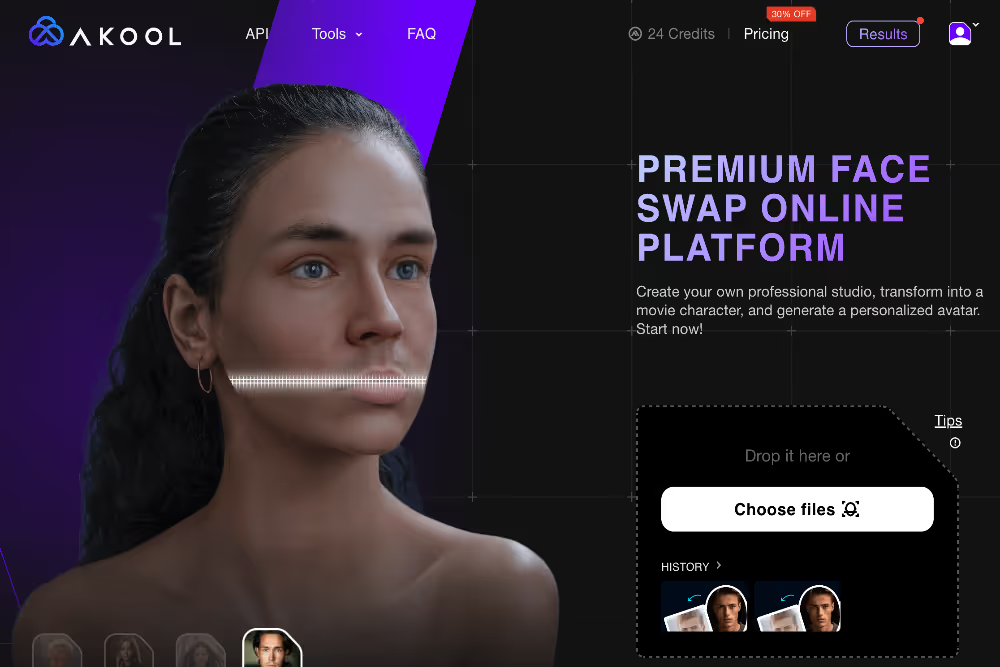
コンテンツチェックを自動化することで、クリエイターやエージェンシーはメディアやマーケティングのイノベーションに集中できます。
AIモデレーションは、出版や広告における有害なコンテンツを検出することで、お客様の評判を守ります。
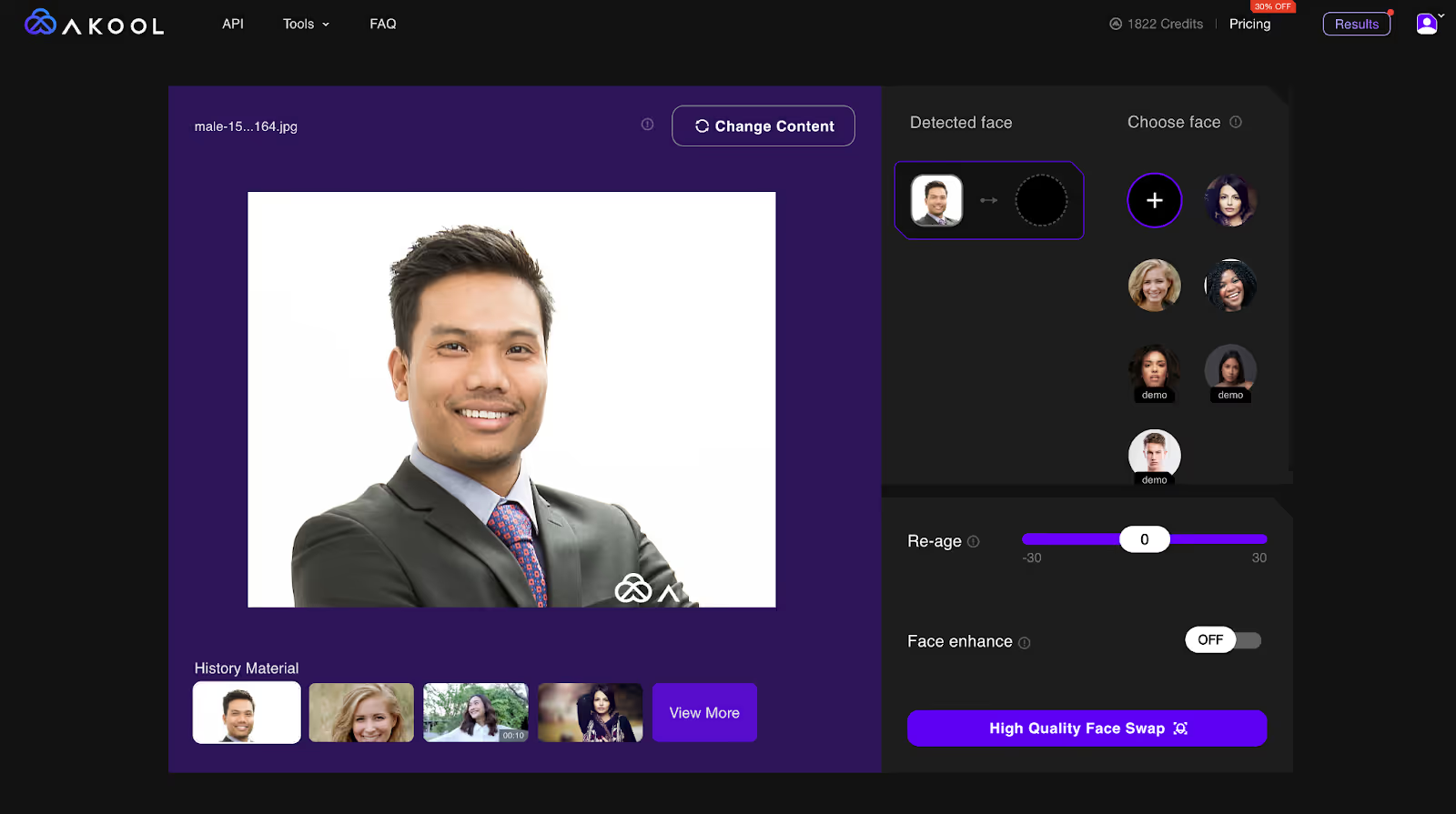
コミュニティ管理とカスタマーサポートにおいて、大量のユーザー生成コンテンツを効率的に処理します。

当社のAIコンテンツ管理ツールは、有害なコンテンツを自動的にフィルタリングすることにより、ソーシャルメディアプラットフォームがポジティブなユーザー環境を維持するのに役立ちます。有意義な交流を促し、信頼できるコミュニティを構築することで、プラットフォームガイドラインを確実に遵守し、ユーザー満足度を高めます。
電子商取引サイト上の商品レビューやユーザー生成コンテンツが引き続き尊重され、AIモデレーションに準拠していることを確認してください。不適切な表現をフィルタリングすることで、ブランドインテグリティの維持に役立ち、顧客に安全なショッピング環境を提供します。
当社のAIモデレーションツールは、有害な行動や言葉を検出してフィルタリングすることで、ゲームプラットフォームを保護します。これにより、プレイヤーにとって居心地の良い空間が作られ、フェアプレイが促進され、すべてのユーザーのゲーム体験が向上します。
当社のAIモデレーションツールを使えば、大量のユーザーコメントを簡単に管理できます。有害なコメントやスパムのようなコメントをすばやく特定して除外し、議論を順調に進め、プラットフォームでのユーザーエンゲージメントを向上させます。
当社のAIツールは、マルチメディアコンテンツをリアルタイムで分析して、不適切な画像や映像を検出してブロックします。この機能により、プラットフォームの安全性とコミュニティ標準との整合性が保たれ、ブランドとユーザーの両方が保護されます。
カスタマイズ可能な設定で、特定のニーズに合わせてAIコンテンツ管理ツールをカスタマイズできます。ブランド独自の基準や要件に合わせてフィルターを調整し、プラットフォームに完全に適合するモデレーションアプローチを確保してください。
30%OFF
0.05米ドル/クレジット
(年額252ドルで請求)
0.05米ドル/クレジット
(月額 30 ドルで請求)
0.05米ドル/クレジット
(月額 119 ドルで請求)
0.042米ドル/クレジット
(年間500ドルで請求)
0.05米ドル/クレジット
(年額252ドルで請求)
0.035米ドル/クレジット
(年額252ドルで請求)
0.033米ドル/クレジット
(年額948ドルで請求)
0.05米ドル/クレジット
(年間4200ドルで請求)
What is AI content moderation?
AI content moderation is the use of artificial intelligence to automatically review and filter user-generated content on platforms such as social media, forums, and websites. It helps ensure content complies with community guidelines and legal standards, enhancing user experience and safety.
How does AI content moderation improve user safety?
AI content moderation improves user safety by quickly identifying and removing harmful or inappropriate content such as hate speech, violence, and explicit material. This proactive approach helps create a safer online environment for all users.
What types of content can AI content moderation handle?
AI content moderation can handle a wide range of content types, including text, images, videos, and audio. Advanced algorithms can analyze language, detect inappropriate imagery, and even assess video content for compliance with community guidelines.
How accurate is AI content moderation compared to human moderators?
AI content moderation is highly accurate and can process large volumes of content quickly. While it may not fully replace human moderators, it significantly reduces their workload by handling routine tasks and flagging content that requires human review. Continuous learning and updates improve its accuracy over time.
Can AI content moderation be customized for specific industries?
Yes, AI content moderation can be customized to suit specific industry needs. Whether it's e-commerce, social media, or online gaming, AI tools can be tailored to address the unique content challenges and compliance requirements of each sector.
How does AI content moderation handle multilingual content?
AI content moderation tools are equipped with natural language processing capabilities that allow them to understand and moderate content in multiple languages. This ensures that platforms can maintain consistent content standards across diverse linguistic user bases.
What are the benefits of using AI content moderation for businesses?
Businesses benefit from AI content moderation by reducing the risk of hosting harmful content, protecting brand reputation, and enhancing user trust. It also allows companies to manage content at scale, freeing up human resources for more complex moderation tasks.
Is AI content moderation compliant with data privacy regulations?
AI content moderation services are designed to comply with data privacy regulations such as GDPR and CCPA. They implement strict data handling protocols to ensure user data is processed securely and transparently, respecting user privacy rights.